Introducing Groups in Camera Vault: Organize Your Collection Your Way
I needed a way to keep track of the cameras I'm selling on eBay, so I built Groups. Now you can organize your cameras and lenses into your own collections, and adding new gear is one tap away.
Every collector knows the cycle. You buy a camera, then another, then a lens you didn't strictly need, and eventually you look at your shelf and realize some of these have to go. Not the favorites. But the duplicates, the ones you bought just to try, the body you replaced when a better copy came along.
That's where I was a few weeks ago. I had a small pile of cameras I wanted to sell on eBay, and no good way to keep track of them.
Why I built Groups
Camera Vault already knew everything about my collection: what I own, what's on my wishlist, and thanks to the eBay pricing feature, roughly what each piece is worth. What it didn't have was a way to say "these five are the ones I'm selling."
So I was keeping that list somewhere else. A note on my phone, a sticky note on the shelf, my own memory, which is not reliable at 1am on eBay. I'd list a camera, forget which ones were still waiting, and lose track of what had already sold.
I wanted my selling inventory in the same place as the rest of my collection, next to the market prices I was already checking. So I built Groups.
How Groups work
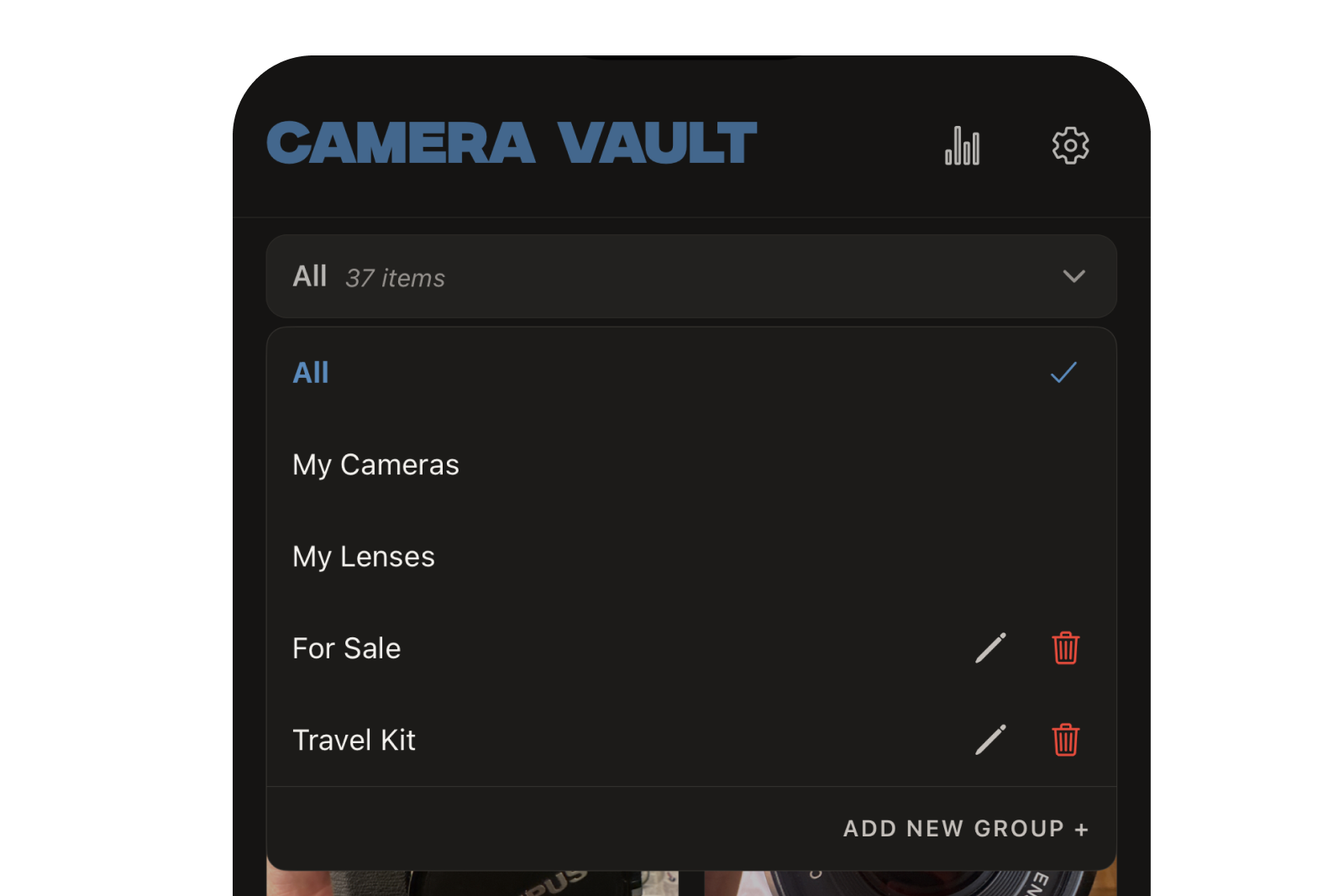
Groups are your own collections inside Camera Vault. Make as many as you want, name them whatever you like, and add any camera or lens to them.
My first group was "For Sale." Since then I've added "Travel Kit," and I'm sure more are coming. You might organize by brand, by format, by what's loaded with film, or by which shelf something lives on.
A few things make them work the way a collection actually does:
- Gear can be in more than one group. A camera can be in "Rangefinders" and "For Sale" at the same time. It works like the albums on your phone: one photo, as many albums as you want.
- My Cameras and My Lenses always show everything. Every camera you add appears in My Cameras automatically, and every lens in My Lenses. Groups are extra labels on top, so putting a camera in "For Sale" never hides it from the rest of your collection.
- Nothing gets copied. It's the same camera in every group. Edit it once and the change shows up everywhere.
- Your stats count everything once. A camera in three groups still counts once in your collection totals.
- Deleting a group never deletes your gear. The group goes away, and everything in it stays in your collection.
Taking inventory of what you're selling
This is the part I use most. Switch to your "For Sale" group from the menu at the top of the Home screen and you get a clean list of exactly what's up for sale, nothing else.
Open any camera in that group and its eBay market price is right there on the detail page, pulled from real sold listings. When it's time to write a listing, I can check what similar cameras have actually sold for without opening three browser tabs. When something sells, I take it out of the group, and the list stays current.
Searching inside a group only searches that group too, so finding the one Minolta in a stack of listings takes a second.
Adding gear to a group
When you add or edit a camera or lens, you'll find a Groups row in the form, right alongside Brand and Model. Tap it and a sheet slides up with all of your groups:
- Tap a group to check or uncheck it. The sheet stays open, so you can pick several at once.
- Tap + New group to create one on the spot. It's selected for you automatically.
- Tap Done, or swipe down, to close it.
If you end up with a lot of groups, a search field appears at the top of the sheet. On a camera's detail page, its groups show as small tags so you can see at a glance where it lives.
A new home for the add button
Along with Groups, adding new gear got faster. Instead of a tab bar along the bottom, there's now a single floating + button in the bottom corner of the Home screen.
Tap it and you get three choices:
- AI Scan. Snap a photo of a camera or lens. AI Scan works out which one it is and fills in the brand, model, year and more for you to check before saving.
- Add Camera. Fill in the details yourself.
- Add Lens. Same, for glass.
The button stays put whichever group you're viewing and however far you've scrolled, so the camera you just found at a flea market is always one tap away. And if you're viewing a group when you tap it, adding the new gear to that group takes one more tap in the Groups row.
With the tab bar gone, Stats and Settings moved up to the header, and your collection gets more room on screen.
What's next
Groups are just the start of better selling tools in Camera Vault. I'd like the app to eventually know the difference between gear you're keeping and gear that's on its way out, so sold cameras don't count toward your collection value.
If you try Groups and find a way of using them I didn't think of, I'd love to hear about it.
Camera Vault is available on iOS and Android, free to download, no account required. Groups are live now on Android (version 3.4.6) on Google Play, and coming to iPhone as soon as the update clears App Store review. Download it for iPhone here.
Follow along on Instagram and check back here for more film photography writing, collection updates, and the occasional deep dive into cameras I found on eBay at midnight.